Privacy is one of the most critical aspects of our digital life that needs to be properly taken care of.
Our laptops contain a lot of info about us that none of us would like anyone else to know. This is the reason why people wish to leave behind not a solitary trace of activity on their own computer/ laptop, forget about a shared computer.
One particular area where most users fail to look into is the potential misuse of hard disks to recover data once they’ve sold their computer. And this is quite a simple task, which can easily be performed by even an average computer user! Follow these steps to ensure what you do on a PC can never be tracked.
Cleaning up various kinds of junk stashed in various corners of the operating system can boost up your Windows 10 computer in more ways than you can imagine. This is a really handy tip and must not be taken lightly if you want your computer to stay in this pristine shape for long.
ST Cleaner is distributed with verifiable digital signatures
Clear File Explorer History
Windows 10 maintains a detailed record of your entire activity in its repository. Clearing up this history is quite easy.
- Left Click on Quick Access to open a menu.
- Click on Options.
- Under Privacy, click the Clear button to clear File Explorer history.
Disabling Time Stamps
Everything you do on a Windows 10 PC/ laptop gets a timestamp allotted to it. Even if you clear the cache and remove all of the traces from the computer, all the activities you did can be fetched courtesy the timestamps. To disable timestamps, you need to access the User Assist File and Last Access Page through the Registry Editor to erase all hidden traces from Windows 10.
Modifying User Assist File
The User Assist is a Registry file that keeps track of all programs that were launched at some point in a computer. To disable User Assist, follow these simple steps:
- Open the Run by pressing the Windows Key + R shortcut combination. Now type in regedit and press Enter to launch the Registry Editor.
- Navigate to HKEY_CURRENT_USER\Software\Microsoft\Windows\ CurrentVersion\Explorer\UserAssist.
- Now collapse both of these keys and delete the Count folder:
(a) CEBFF5CD-ACE2-4F4F-9178-9926F41749EA
(b) F4E57C4B-2036-45F0-A9AB-443BCFE33D9F
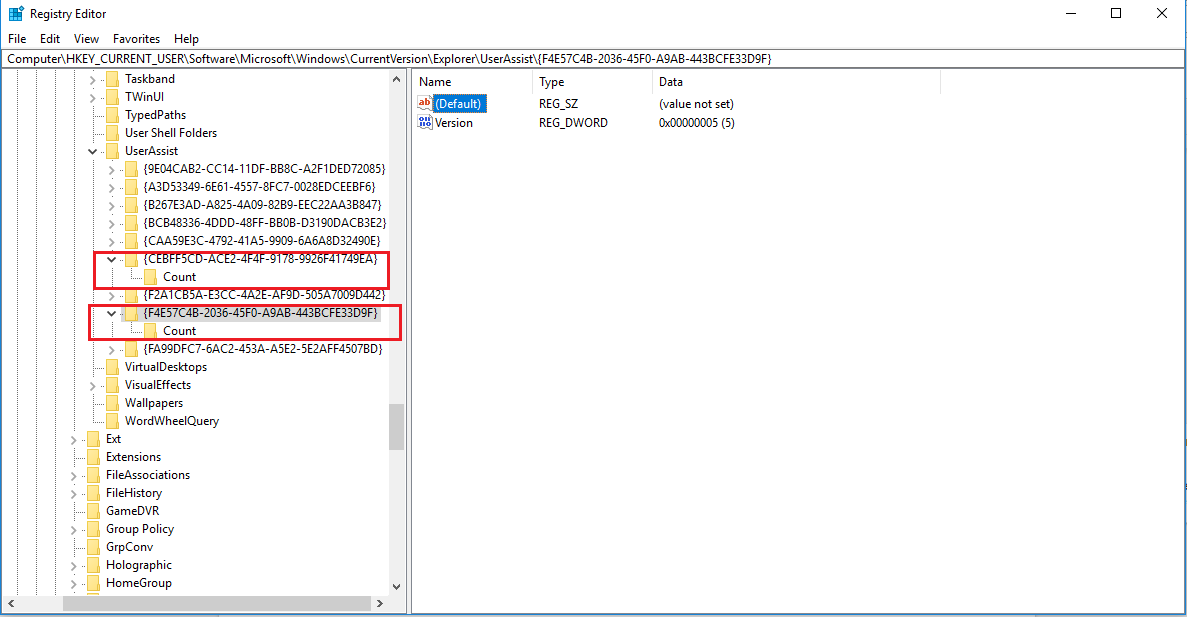
Delete the count folder - Create a new key named as Settings create.
- In this key, right-click and create DWORD value named NoLog, set the value to 1.
Disable Last Access Log
The Last Access log allows people to view the last opened, modified and closed files and folders. Needless to say, if you want to remove your traces from Windows 10, you should disable it.
- Open Command Prompt on your computer.
- Type the following command and execute it: fsutil behavior set disablelastaccess 1.
- Now restart your computer to make the changes permanent.
Disable Windows Event Logging
As the name implies, the Windows Event Logger keeps track of everything that happens on the PC ranging from the smallest error to abrupt system crashes and even Internet History. Before we disable it, we have to first empty its contents from the Event Viewer.
- Open Control Panel, click on System and Security.
- Click on Administrative Tools, and then click on Event Viewer.
- In the Event Viewer window, click on Windows Logs to collapse it. Now right-click on Application and select Clear Log.
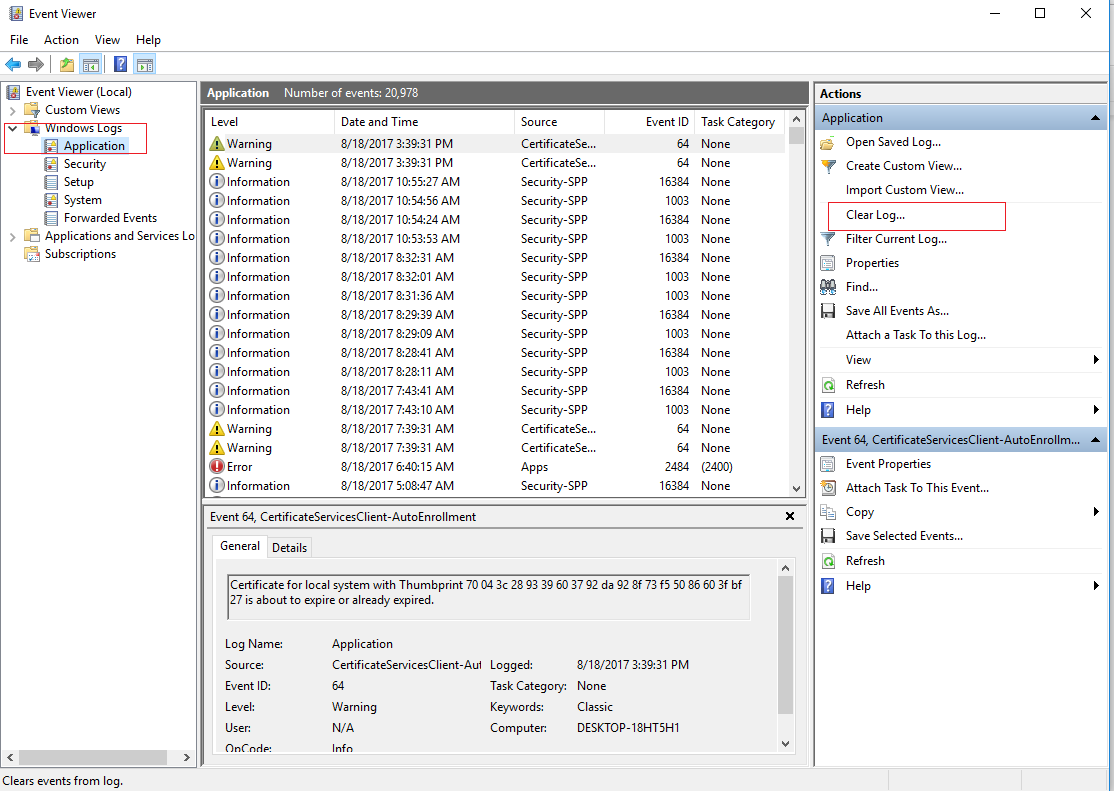
- A prompt with the following message will pop: You can save the contents of this log before clearing it? Click Clear.
Now you can turn your attention towards disabling the Event Logger:
- Press the Windows Key + R to open the Run command box.
- Type in msconfig and press Enter.
- Click the Services tab and make sure the Hide all Microsoft Services option is unchecked.
- Now scroll down until you find Windows Event Log. Uncheck it and click OK.
- Restart the system and the Event Logger should be disabled.
Cleaning Junk & Cache Files
While you browse the Internet junk and cache files are continuously being created and saved on your PC. The simplest and most efficient way to remove these is by using ST Cleaner to get rid of all junk & cache files at a single click.
- Download ST Cleaner and execute the setup file to install the software.
- Once the setup is over, you’ll be greeted with a simple GUI with all the relevant features neatly laid out in an extremely easy to make sense of manner.
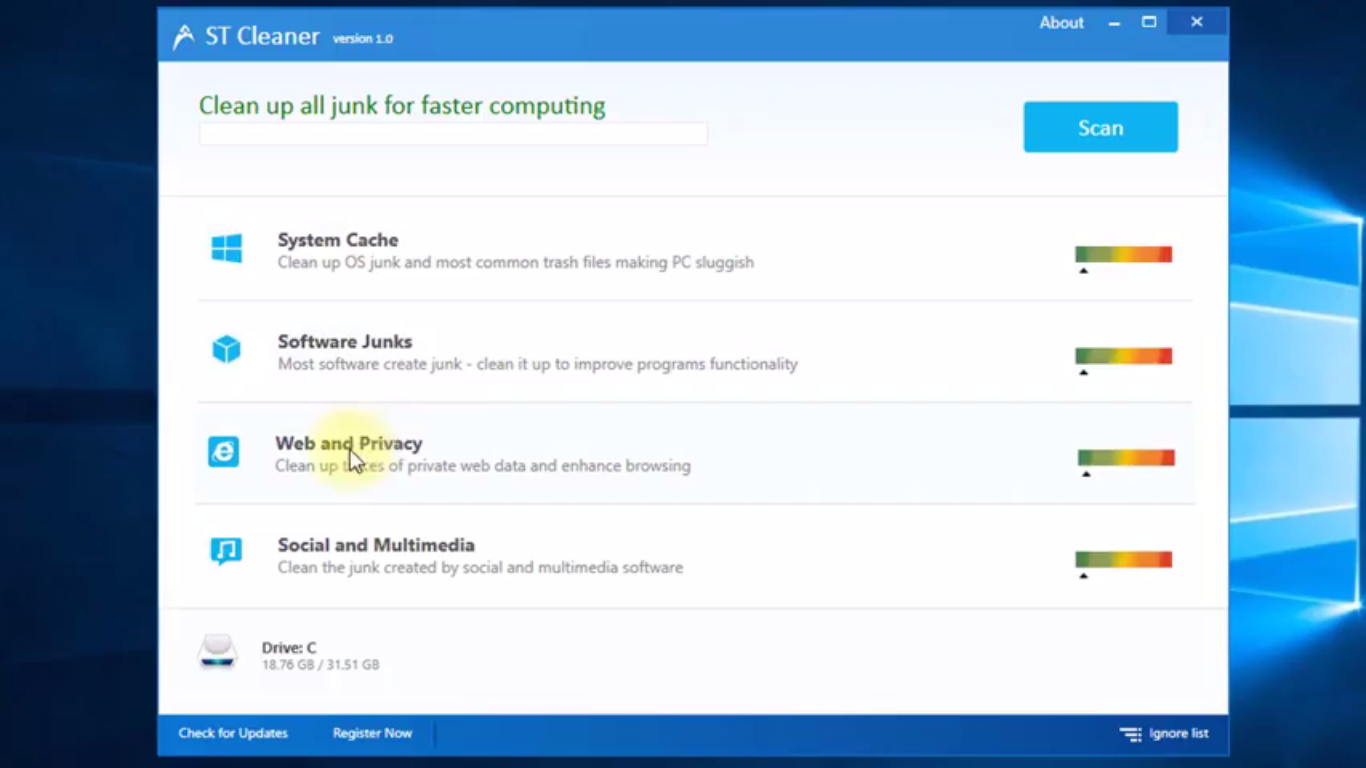
ST Cleaner user interface - Simply click the Scan button and ST Cleaner will initiate the scan to unearth all the junk and cache on your computer.
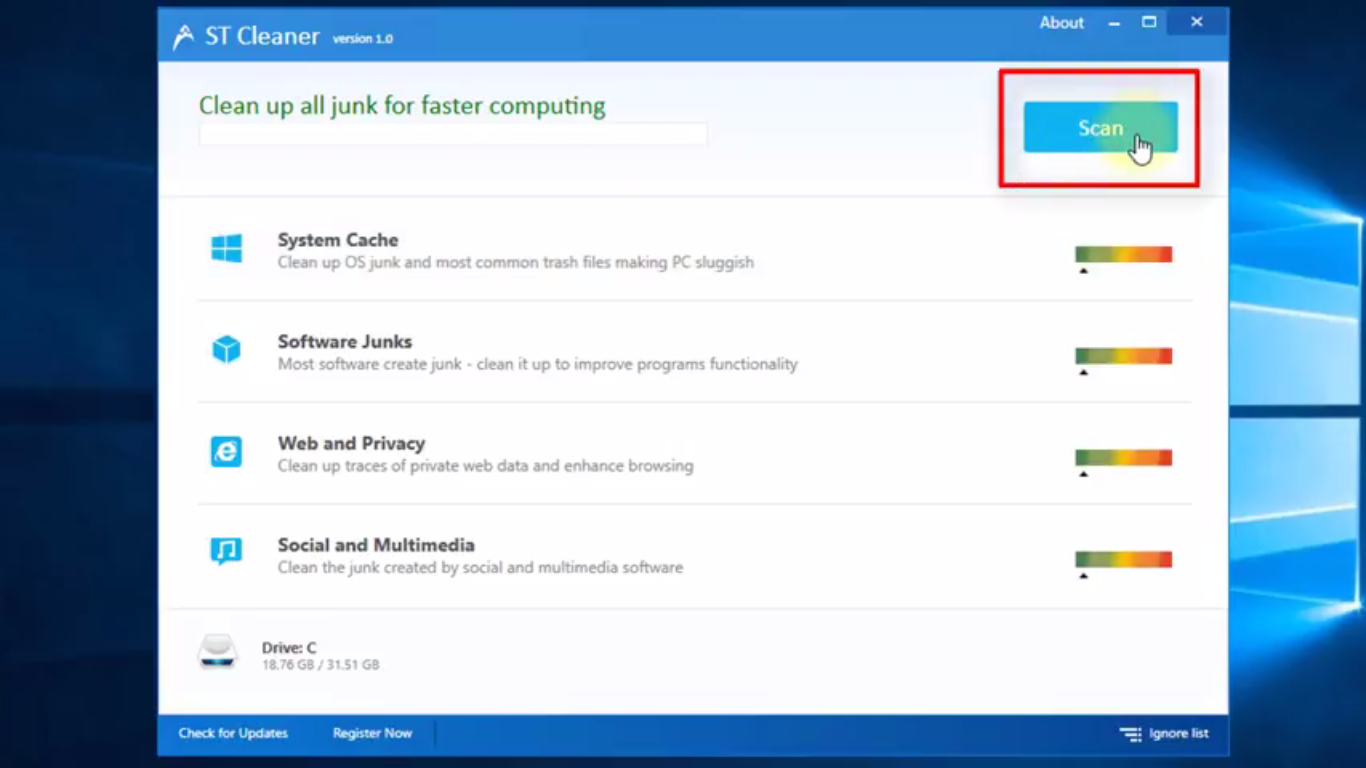
Launching the scan - Once the scan is over, you’ll be presented with the amount of space that can be recovered by performing the cleanup. Simply click the Clean Now button to remove all the junk.
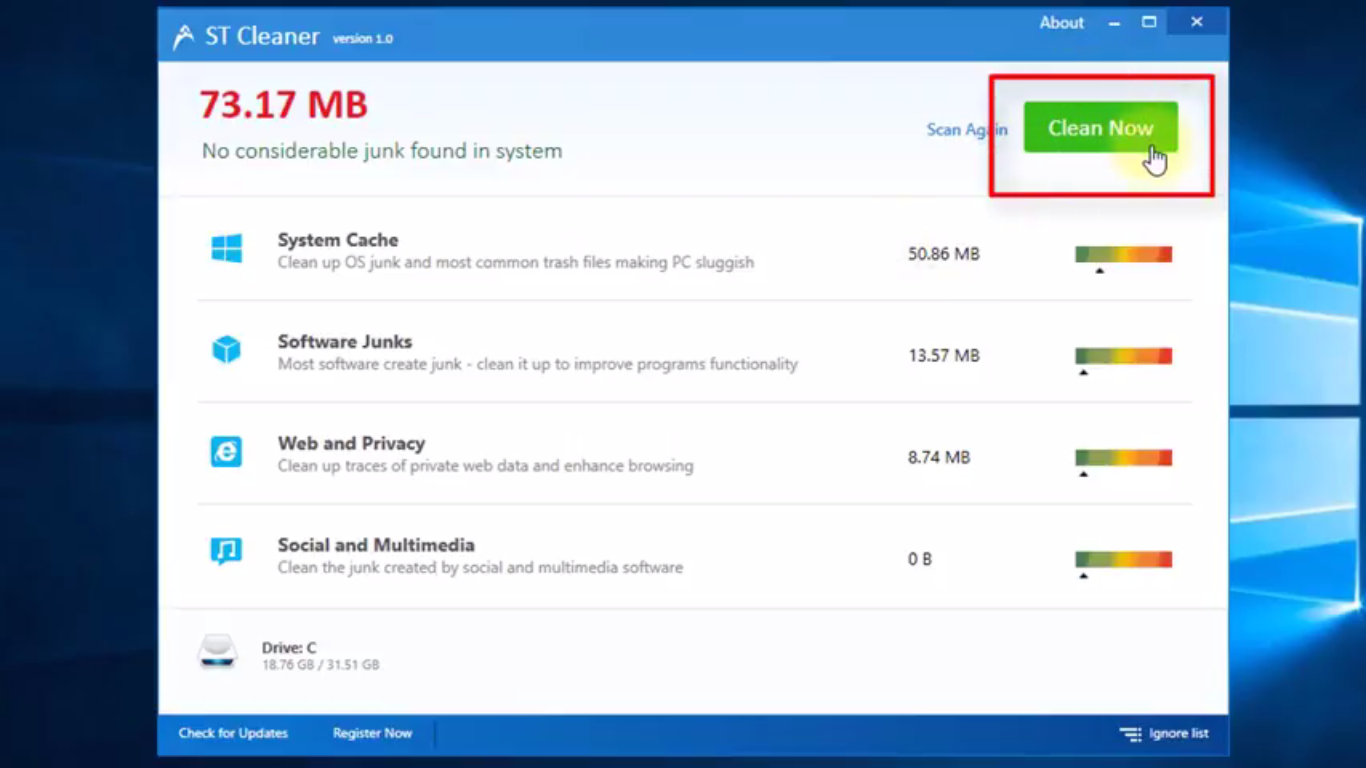
Cleaning up the junk
